Java Considerations
Use supported JRE
GeoServer’s speed depends a lot on the chosen Java Runtime Environment (JRE). The latest versions of GeoServer are tested with both Oracle JRE and OpenJDK. Implementations other than those tested may work correctly, but are generally not recommended.
Tested:
- Java 8 - GeoServer 2.9.x and above (OpenJDK and Oracle JRE tested)
- Java 7 - GeoServer 2.6.x to GeoServer 2.8.x (OpenJDK and Oracle JRE tested)
- Java 6 - GeoServer 2.3.x to GeoServer 2.5.x (Oracle JRE tested)
- Java 5 - GeoServer 2.2.x and earlier (Sun JRE tested)
Unsupported:
- Java 9 - Incompatibility with Service Provider Interface Plugin System has been noted
For best performance we recommend the use Oracle JRE 8 (also known as JRE 1.8).
As of GeoServer 2.0, a Java Runtime Environment (JRE) is sufficient to run GeoServer. GeoServer no longer requires a Java Development Kit (JDK).
Install native JAI and ImageIO extensions
The Java Advanced Imaging API (JAI) is an advanced image processing library built by Oracle. GeoServer requires JAI to work with coverages and leverages it for WMS output generation. JAI performance is important for all raster processing, which is used heavily in both WMS and WCS to rescale, cut and reproject rasters.
The Java Image I/O Technology (ImageIO) is used for raster reading and writing. ImageIO affects both WMS and WCS for reading raster data, and is very useful (even if there is no raster data involved) for WMS output as encoding is required when writing PNG/GIF/JPEG images.
By default, GeoServer ships with the “pure java” version of JAI, but for better performance JAI and ImageIO are available as “java extensions” to be installed into your JDK/JRE.
Native JAI and ImageIO extensions are available for:
| System | 32-bit | 64-bit |
|---|---|---|
| Windows | available | |
| Linux | available | available |
| Solaris | available | available |
| Max OSX |
Warning
A system installations of JAI and ImageIO may conflict with the pure java copy of JAI and ImageIO included in your GeoServer WEB-INF/lib folder - producing “class cast exceptions” preventing your application server from starting GeoServer.
When installed as a “java extension” JAI and JAI ImageIO are unpacked into your JRE as both native code (in
bin) and jars (inext/libs). If you encounter this problem after installation of native the JAI and ImageIO extensions remove the pure java implementation from your GeoServer instancesWEB-INF/libfolder:rm jai_core-*jar jai_imageio-*.jar jai_codec-*.jar
On OSX jars may be installed in
~/Library/Java/Extensions, we advise removing these jars if present as they are no longer maintained by Apple.
Note
Native ImageIO encoding may not always be the best choice, we recommend the built-in PNGJ based encoder and libjpeg-turbo Map Encoder Extension for png8 and jpeg encoding performance.
Installing native JAI on Windows
- Go to the JAI download page and download the Windows installer for version 1.1.3. At the time of writing only the 32 bit version of the installer is available, so if you are using a JDK, you will want to download jai-1_1_3-lib-windows-i586-jdk.exe, and if you are using a JRE, you will want to download jai-1_1_3-lib-windows-i586-jre.exe.
- Run the installer and point it to the JDK/JRE install that GeoServer will use to run.
- Go to the JAI Image I/O download page and download the Windows installer for version 1.1. At the time of writing only the 32 bit version of the installer is available, so if you are using a JDK, you will want to download jai_imageio-1_1-lib-windows-i586-jdk.exe, and if you are using a JRE, you will want to download jai_imageio-1_1-lib-windows-i586-jre.exe
- Run the installer and point it to the JDK/JRE install that GeoServer will use to run.
Note
These installers are limited to allow adding native extensions to just one version of the JDK/JRE on your system. If native extensions are needed on multiple versions, manually unpacking the extensions will be necessary. See the section on Installing native JAI manually.
Note
These installers are also only able to apply the extensions to the currently used JDK/JRE. If native extensions are needed on a different JDK/JRE than that which is currently used, it will be necessary to uninstall the current one first, then run the setup program against the remaining JDK/JRE.
Installing native JAI on Linux
Go to the OpenGeo JAI download page and download the Linux installer for version 1.1.3, choosing the appropriate architecture:
- i586 for the 32 bit systems
- amd64 for the 64 bit ones (even if using Intel processors)
Copy the file into the directory containing the JDK/JRE and then run it. For example, on an Ubuntu 32 bit system:
$ sudo cp jai-1_1_3-lib-linux-i586-jdk.bin /usr/lib/jvm/java-6-sun
$ cd /usr/lib/jvm/java-6-sun
$ sudo sh jai-1_1_3-lib-linux-i586-jdk.bin
# accept license
$ sudo rm jai-1_1_3-lib-linux-i586-jdk.bin
Go to the OpenGeo JAI Image I/O Download page and download the Linux installer for version 1.1, choosing the appropriate architecture:
- i586 for the 32 bit systems
- amd64 for the 64 bit ones (even if using Intel processors)
Copy the file into the directory containing the JDK/JRE and then run it. If you encounter difficulties, you may need to export the environment variable
_POSIX2_VERSION=199209. For example, on a Ubuntu 32 bit Linux system:$ sudo cp jai_imageio-1_1-lib-linux-i586-jdk.bin /usr/lib/jvm/java-6-sun $ cd /usr/lib/jvm/java-6-sun $ sudo su $ export _POSIX2_VERSION=199209 $ sh jai_imageio-1_1-lib-linux-i586-jdk.bin # accept license $ rm ./jai_imageio-1_1-lib-linux-i586-jdk.bin $ exit
Installing native JAI manually
You can install the native JAI manually if you encounter problems using the above installers, or if you wish to install the native JAI for more than one JDK/JRE.
Please refer to the GeoTools page on JAI installation for details.
GeoServer cleanup
Once the installation is complete, you may optionally remove the original JAI files from the GeoServer WEB-INF/lib folder:
jai_core-x.y.z.jar
jai_imageio-x.y.jar
jai_codec-x.y.z.jar
where x, y, and z refer to specific version numbers.
Installing Unlimited Strength Jurisdiction Policy Files
These policy files are needed for unlimited cryptography. As an example, Java does not support AES with a key length of 256 bit. Installing the policy files removes these restrictions.
Open JDK
Since Open JDK is Open Source, the policy files are already installed.
Oracle Java
The policy files are available at
The download contains two files, local_policy.jar and US_export_policy.jar. The default versions of these two files are stored in JRE_HOME/lib/security. Replace these two files with the versions from the download.
Test if unlimited key length is available
Start or restart GeoServer and login as administrator. The annotated warning should have disappeared.
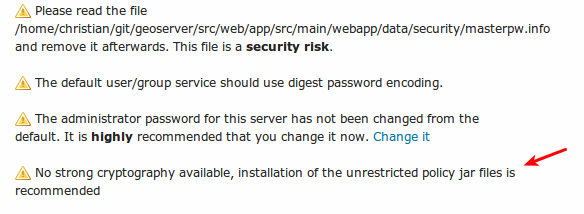
Additionally, the GeoServer log file should contain the following line:
"Strong cryptography is available"
Note
The replacement has to be done for each update of the Java runtime.
IBM Java
The policy files are available at
An IBM ID is needed to log in. The installation is identical to Oracle.