Intellij Quickstart
Import modules into Intellij
Run the Intellij IDE
Select
File -> New -> Project from Existing Sources....Navigate to the
geoserver/src/pom.xmldirectory and clickOpen.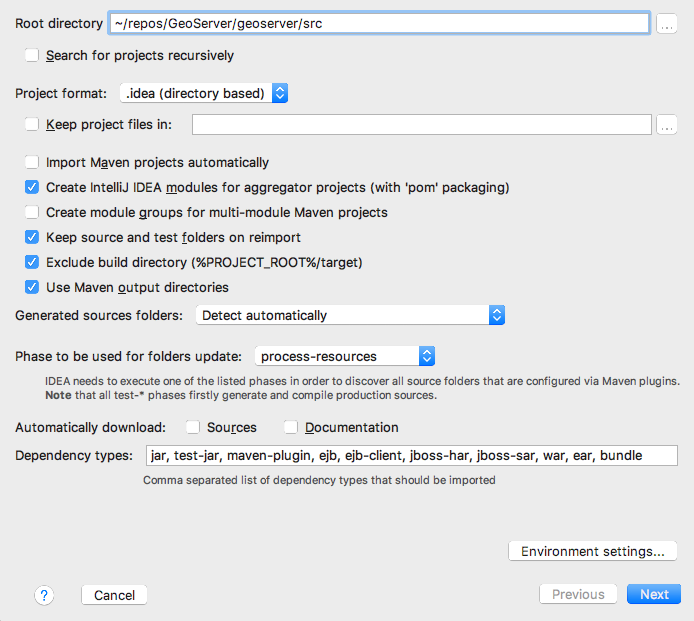
Click
Next, leaving all profiles unchecked.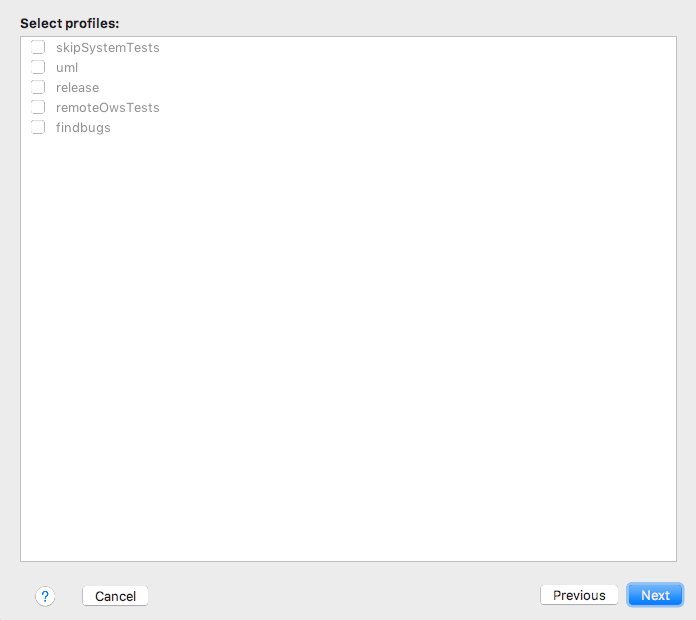
Click
Next, leaving the geoserver project checked.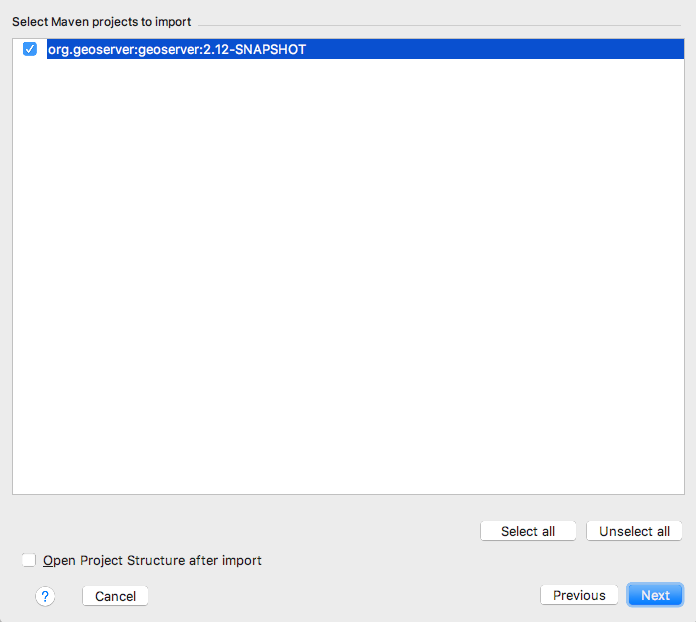
Click
Next, selecting the Java 8 JDK of your choice.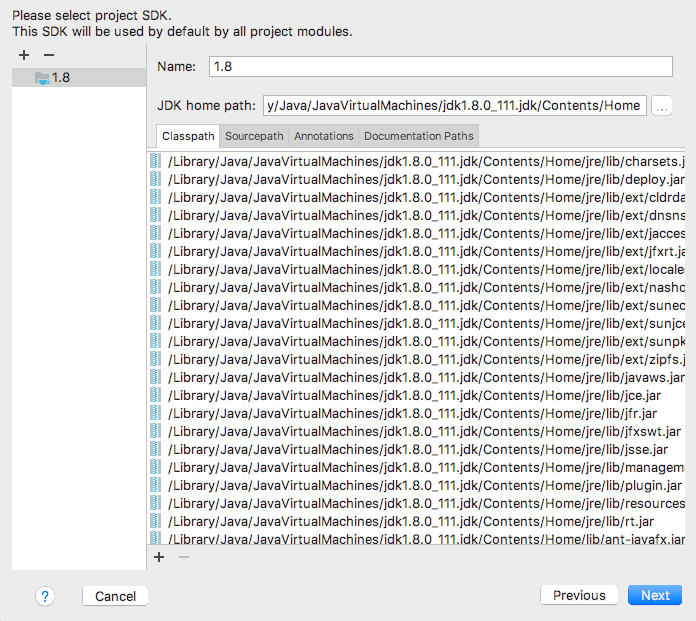
Click
Finish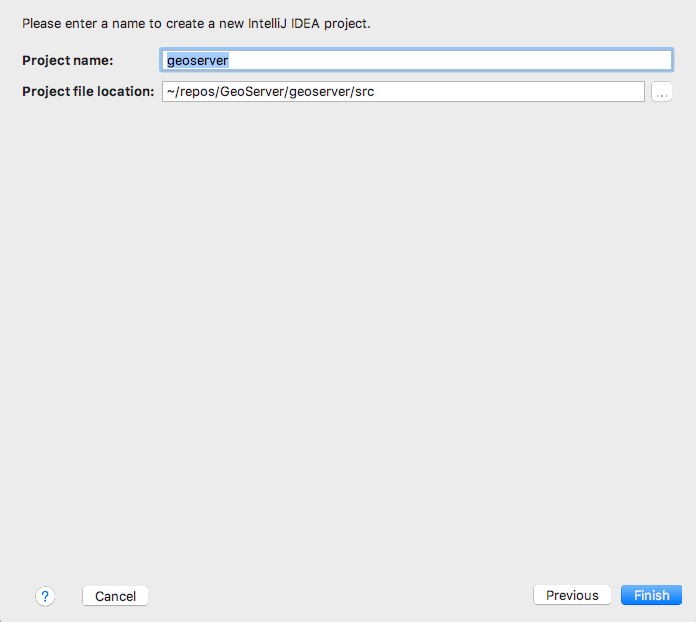
Run GeoServer from Intellij
From the Project browser select the
web-appmoduleNavigate to the
org.geoserver.webpackageRight-click the
Startclass and click toRun 'Start.main()'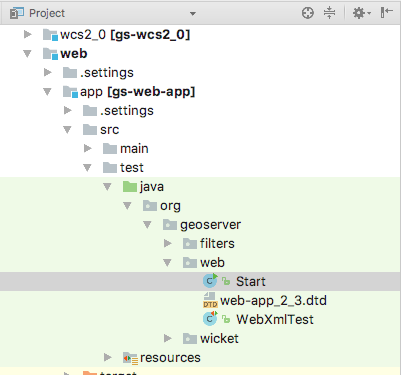
The first time you do this, geoserver will fail to start. Navigate to the
Runmenu, an clickEdit Configurations....Select the
Startconfiguration, and appendweb/appto theWorking Directory.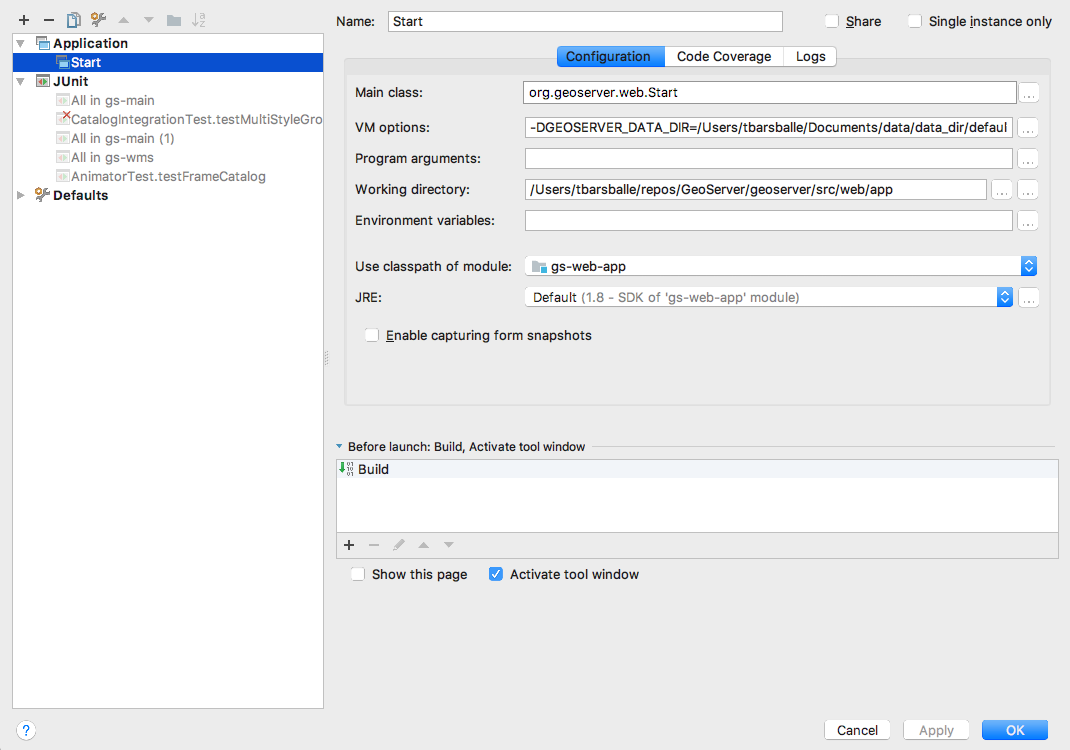
While you have the
Edit Configurationsdialog open, you can fine tune your launch environment (including setting a GEOSERVER_DATA_DIR). When you are happy with your settings, clickOK.You can now re-run GeoServer. Select
Run -> Run 'Start'
Note
If you already have a server running on localhost:8080 see the Eclipse Guide for instructions on changing to a different port.
Run GeoServer with Extensions
The above instructions assume you want to run GeoServer without any extensions enabled. In cases where you do need certain extensions, the web-app module declares a number of profiles that will enable specific extensions when running Start. To enable an extension, open the Maven Projects window (View -> Tool Windows -> Maven Projects) and select the profile(s) you want to enable.
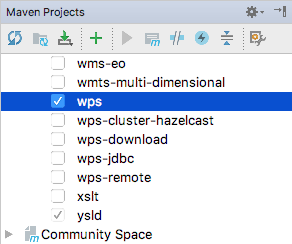
The full list of supported profiles can be found in src/web/app/pom.xml.
Access GeoServer front page
- After a few seconds, GeoServer should be accessible at: http://localhost:8080/geoserver
- The default
adminpassword isgeoserver.